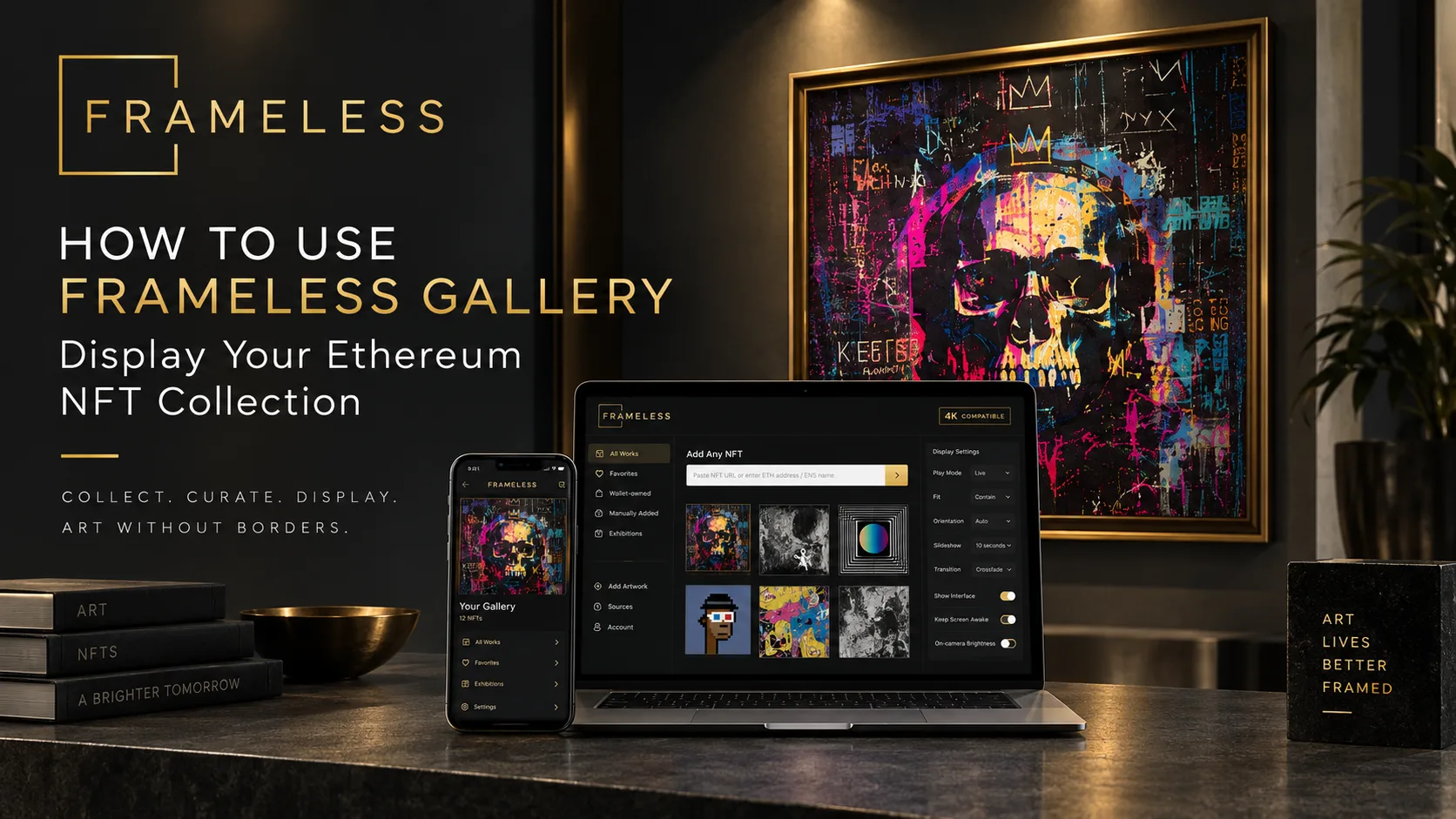
Frameless Gallery was built for one purpose: to let collectors display Ethereum NFTs the way physical art has always been displayed — on a wall, in full view, uninterrupted by interfaces or marketplace clutter. It provides a simple, browser-based way to turn a digital screen into a dedicated art display for your Ethereum NFT collection, and you can get started for free.
For collectors who want more — wallet imports, rotating galleries, and advanced display controls — Frameless Pro unlocks the full gallery experience as a one-time, lifetime purchase.
This guide walks through the complete process, from quickly displaying a single NFT to building a curated, rotating digital gallery.
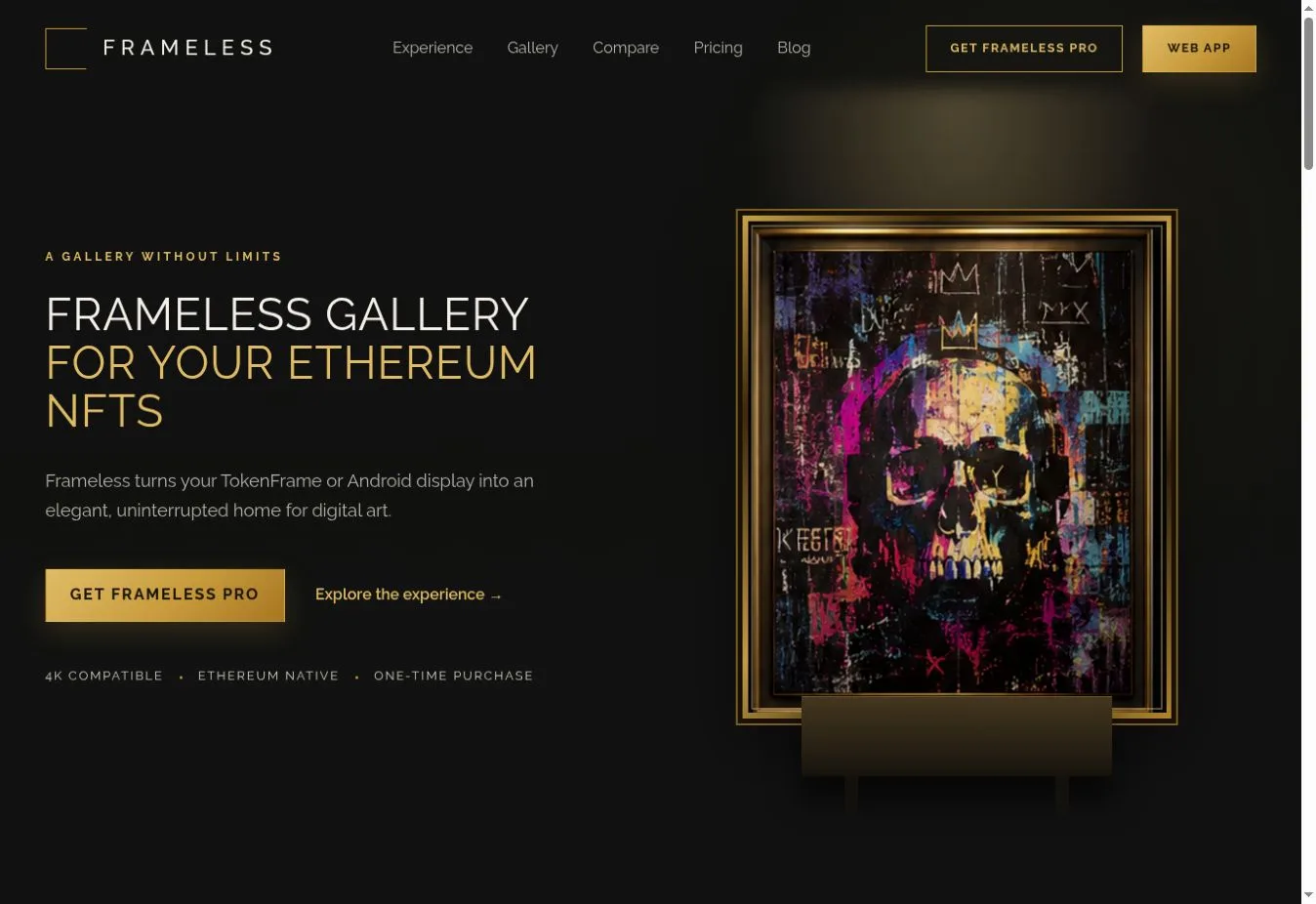
What Is Frameless Gallery?
Frameless Gallery is a digital art display tool designed specifically for Ethereum NFTs. Rather than browsing a marketplace, Frameless treats each NFT like a piece of artwork hung in a private exhibition — identified by its blockchain identity, not by a listing page.
It runs through a standard web browser, so there is no proprietary hardware required and no app store to deal with. You open a URL, and the interface is built to disappear behind the art once playback begins.
There is an important distinction between collecting an NFT and displaying it. Most NFTs live inside a wallet or a marketplace profile and are rarely seen at full size. Frameless exists to close that gap — to bring the work out of the wallet and onto a screen.
Frameless is compatible with browser-capable displays including TokenFrame, Android displays, smart TVs, Raspberry Pi, and any screen that can open a web page.
Who Is Frameless Gallery For?
- NFT collectors who want to actually see their holdings
- Digital art collectors building a serious collection
- Artists who want to exhibit their own work
- Galleries presenting digital exhibitions
- Collectors with dedicated digital displays like TokenFrame
- Anyone who wants to turn a television, monitor, or compatible digital frame into an NFT display
Frameless Gallery Free vs. Frameless Pro
Frameless Gallery Free
- Display an Ethereum NFT using its URL
- Show one NFT at a time
- Quickly turn a compatible screen into a digital art display
- No need to build a gallery first
- Ideal for testing Frameless or displaying a favorite piece
Frameless Gallery Pro
- Connect an Ethereum wallet address or ENS name
- View NFTs owned by that wallet
- Build and manage a collection for display
- Create rotating NFT galleries and slideshows
- Control how artwork is presented (fit, background, timing, transitions)
- Access additional display and gallery controls
- Continue using direct NFT URLs whenever you want
| Feature | Frameless Free | Frameless Pro |
|---|---|---|
| Price | Free | $9.99 one-time, lifetime |
| Display method | Paste a single NFT URL | Wallet address or ENS name |
| NFTs at once | One | Full collection |
| Galleries & playlists | No | Yes |
| Slideshows & rotation | No | Yes |
| Display controls | Basic | Advanced |
| Smart filters & scheduling | No | Yes |
| Direct NFT URLs | Yes | Yes |
How to Get Started With Frameless Gallery
Step 1: Open Frameless Gallery
Visit the Frameless Gallery Player at https://frameless.gallery/pro/player.html.
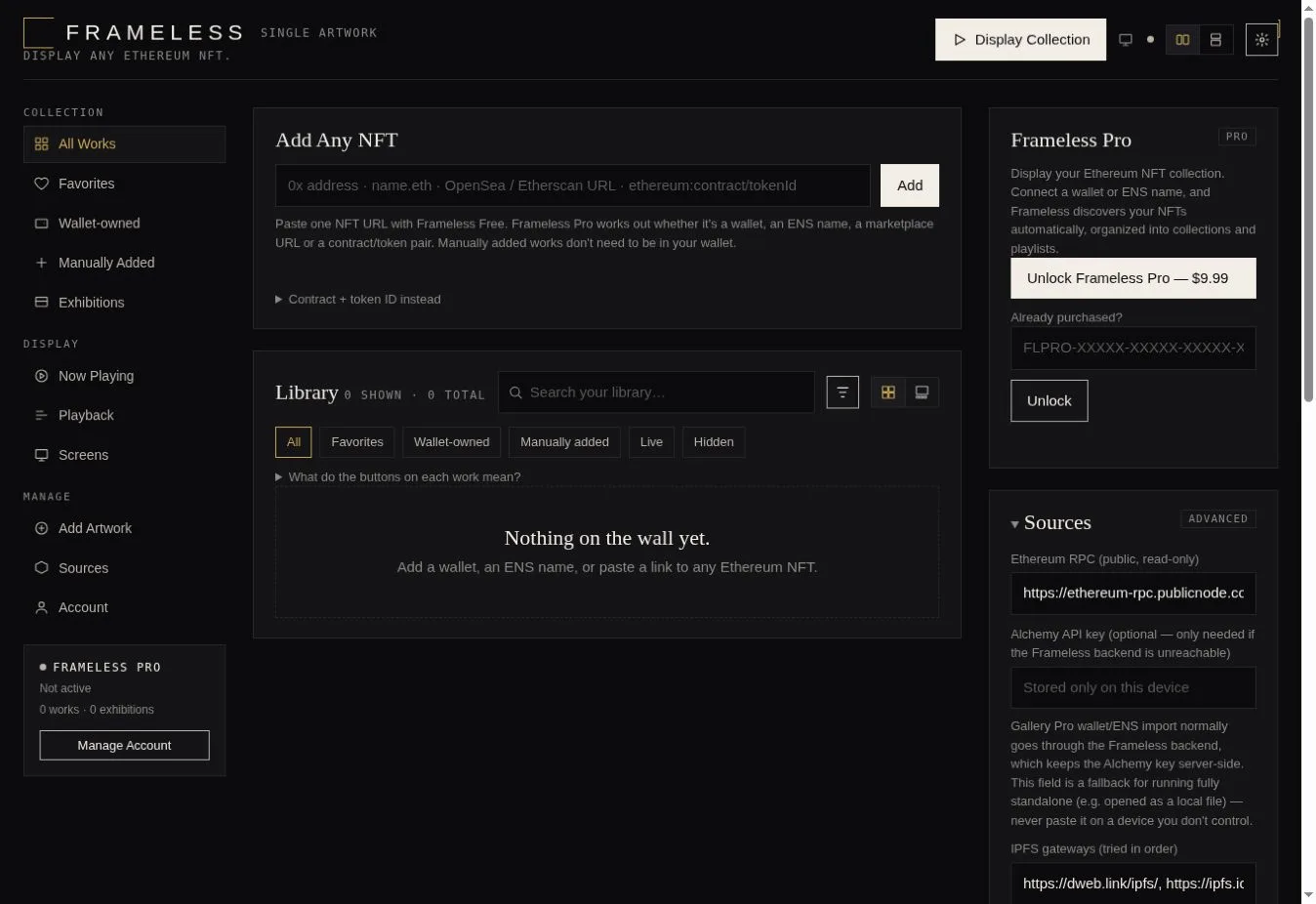
The interface is laid out in three regions:
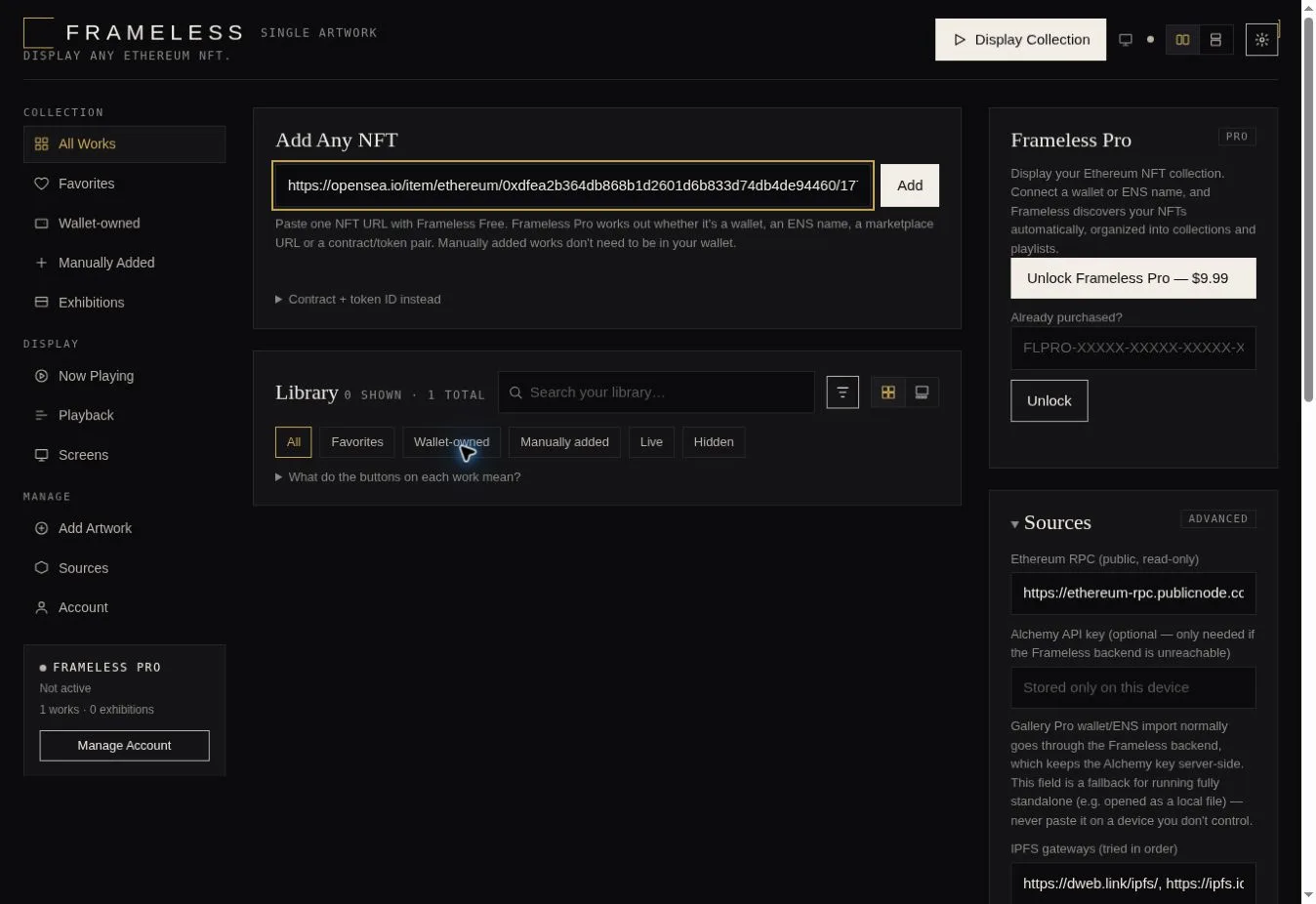
- Left sidebar — collection navigation (All Works, Favorites, Wallet-owned, Manually Added, Exhibitions), display status, and management (Add Artwork, Sources, Account).
- Center — the NFT input box ("Add Any NFT") and your library grid.
- Right sidebar — Pro unlock, sources, and playback configuration.
 1
2
3
1
2
3
- 1 Add Any NFT input
- 2 Library grid
- 3 Left navigation (collection, display, and account management)
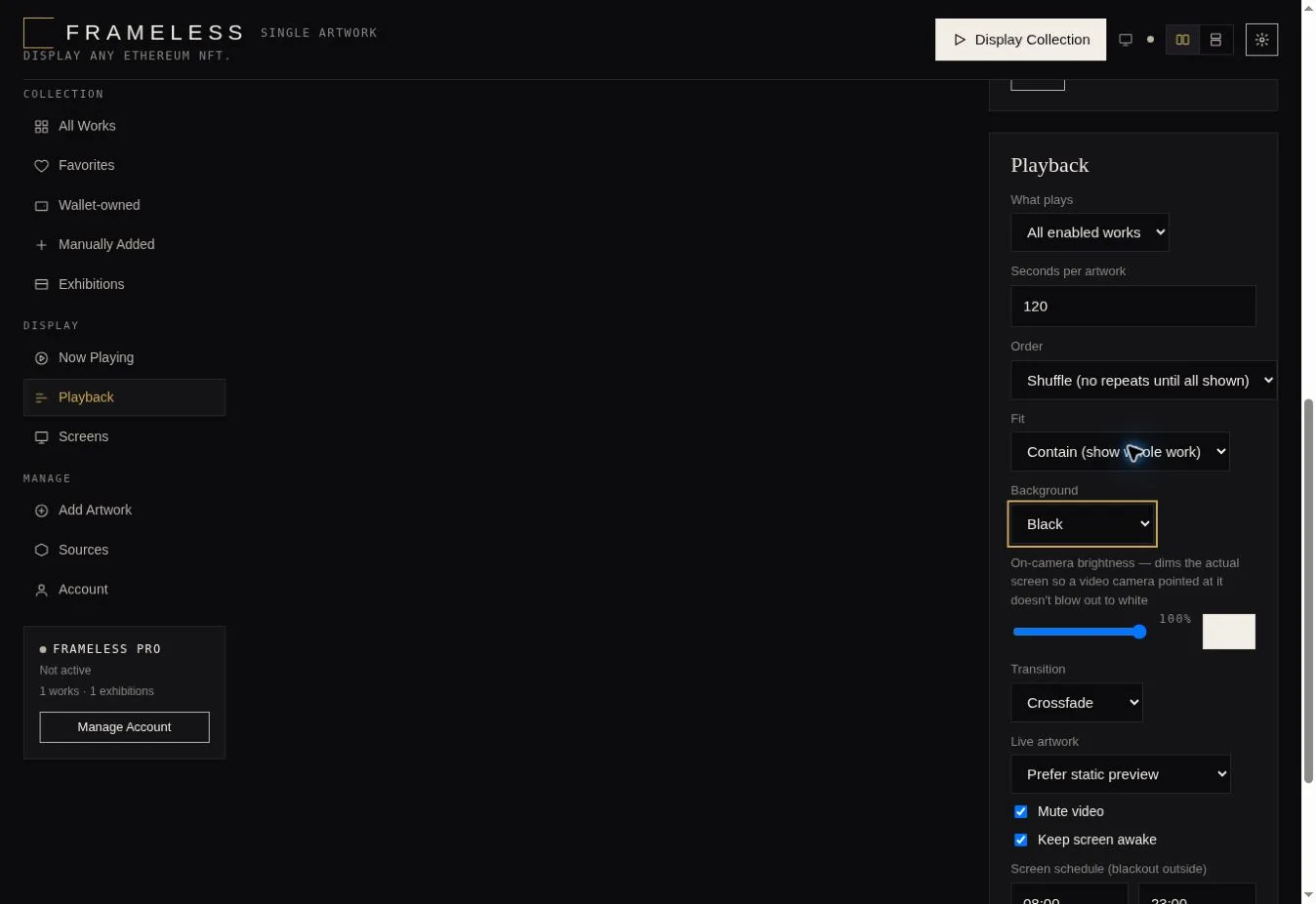
- 4 Playback settings — further down the right-hand sidebar
Step 2: Choose How You Want to Display Your NFT
You have three entry points:
- Display an individual NFT — paste a single NFT URL. Best for free users or anyone who just wants one piece on screen.
- Enter an Ethereum wallet or ENS name (Pro) — import an entire wallet and curate from it. Best for collectors with multiple works.
- Open an existing gallery — return to a saved exhibition you have already arranged.
If you are new, start with option one to confirm everything works, then move to Pro when you are ready to build a collection.
How to Display a Single NFT With Frameless Gallery
Locate the NFT you want to show on OpenSea, Etherscan, or directly from the contract and copy the NFT's URL.
Frameless supports Ethereum NFT sources including OpenSea URLs, Etherscan URLs, and direct contract/token pairs.
Add the NFT to Frameless Gallery
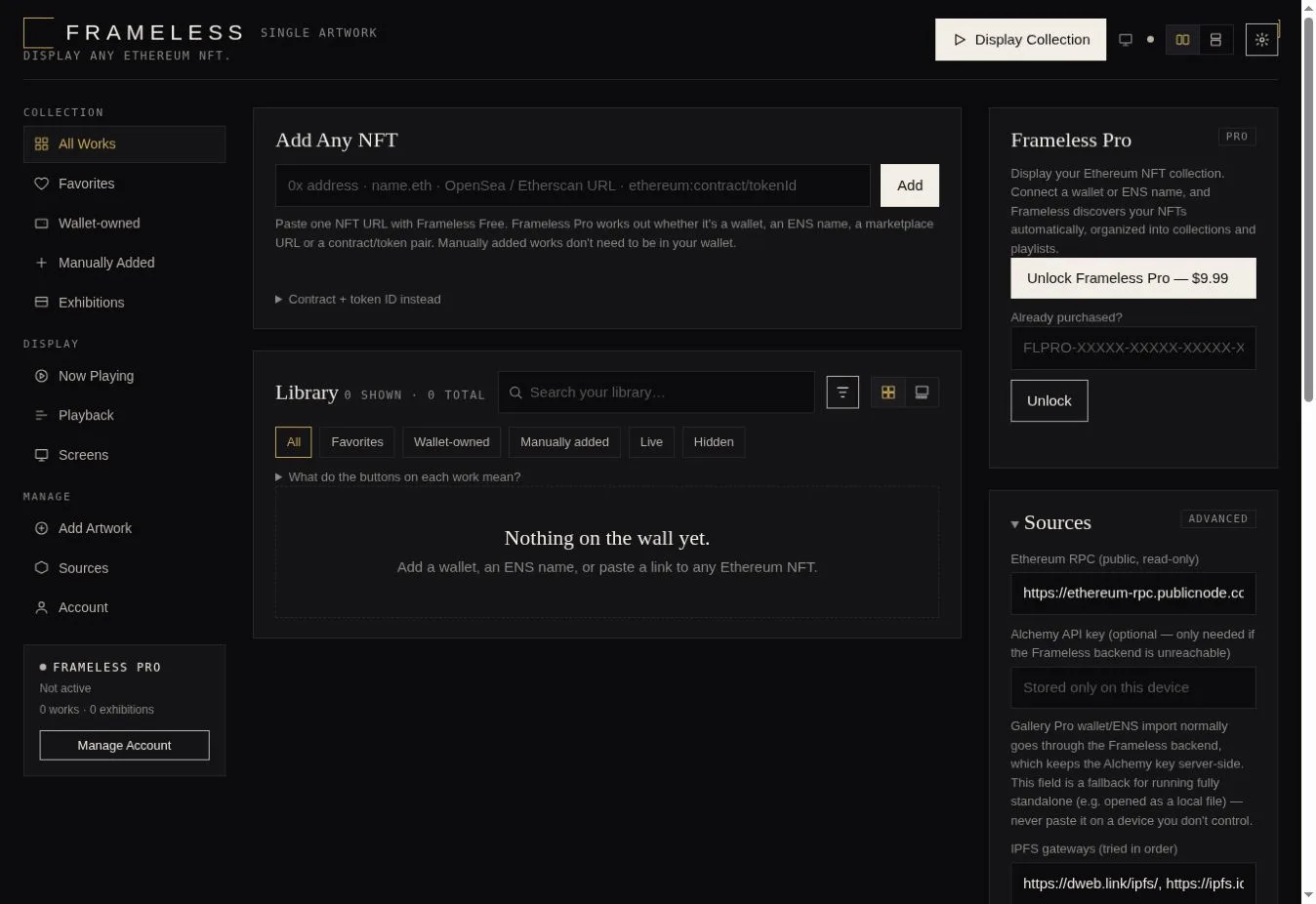
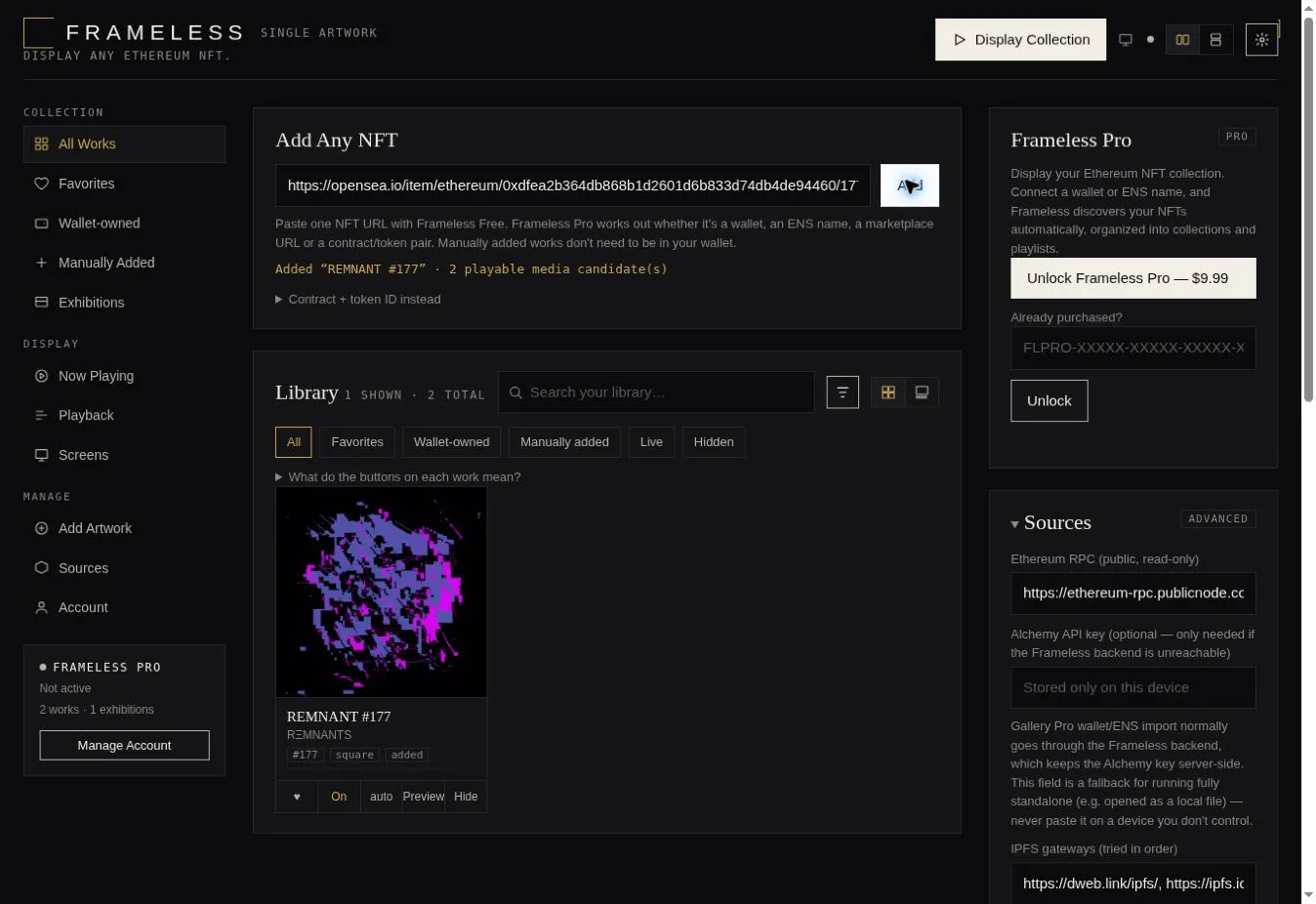
In the player, paste the NFT URL into the "Add Any NFT" input box and click Add.
Frameless retrieves the artwork and its metadata. Verify the artwork, title, artist, and collection, then it is ready to display.
Enter Full-Screen Display Mode
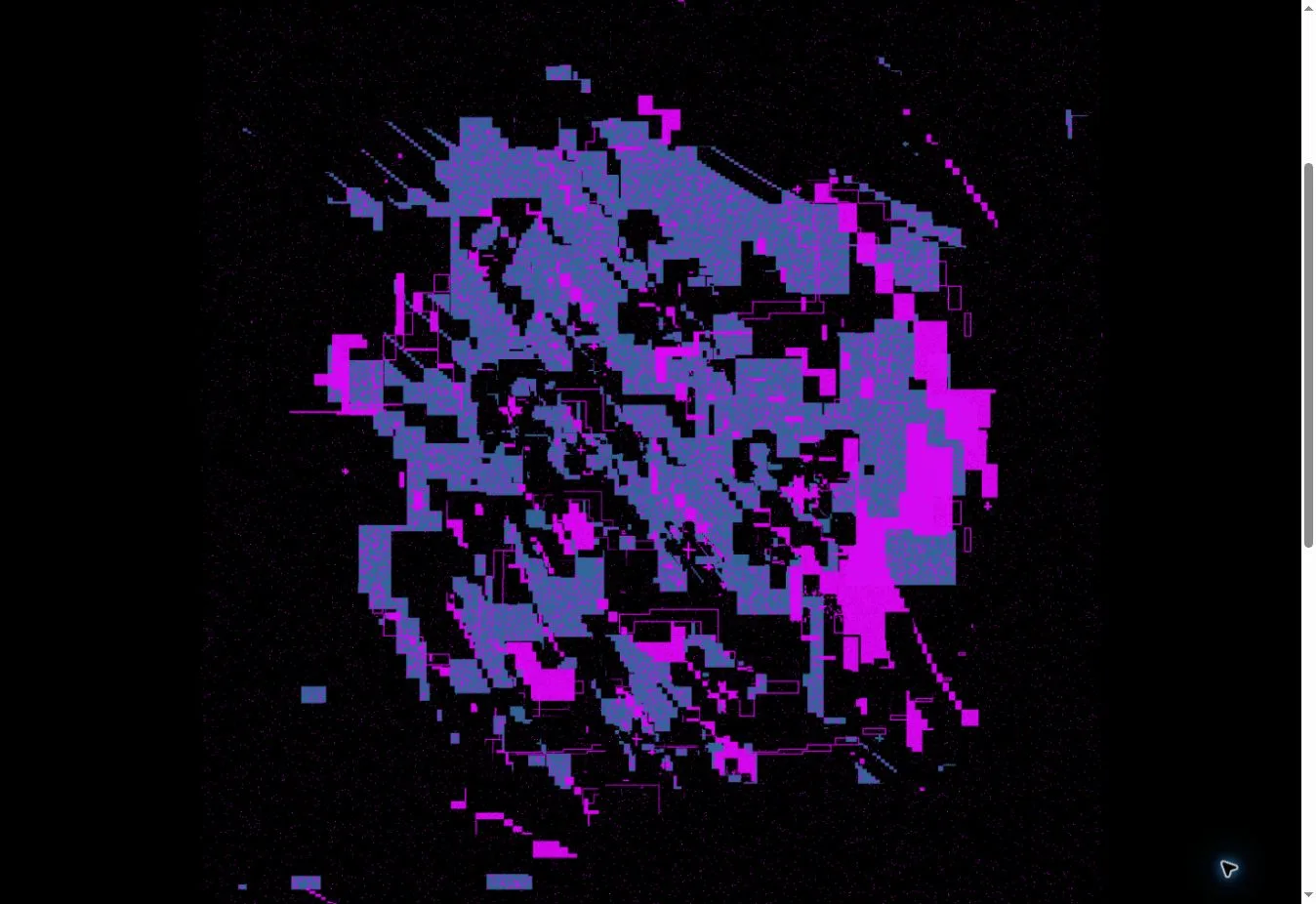
Launch the player and enter full-screen mode. Once the artwork is on screen, the interface and mouse cursor disappear when inactive — the screen becomes a pure display. To return to the controls, move the mouse (or tap, on a touch device) and the controls reappear.
How to Display NFTs From Your Ethereum or ENS Address with Frameless Pro
Enter your Ethereum address or ENS name in "Add Any NFT" and click Add. This will pull in your whole collection.
Frameless only needs the public address to discover which NFTs the wallet owns — it reads publicly available blockchain information.
Never enter a seed phrase or private key. Frameless will never ask for one. There is no wallet connection, no signing, and no login required.
Use an ENS Name
If you have an ENS name (for example, name.eth), enter that instead of a long hex address. Frameless resolves the ENS name to the associated Ethereum address automatically. This makes gallery setup far easier and more readable.
Load Your NFT Collection
Let Frameless retrieve the wallet's NFTs. Browse the available artwork in your library grid, then select individual pieces for display.
How to Create a Curated NFT Gallery
Choose Artwork for Your Gallery
Browse the NFTs in your collection and select the works you want to exhibit. You can mix artists and collections freely. Build a gallery around a theme, a single artist, a specific collection, portraits, square, or landscape only, or a full exhibition.
Arrange Your Gallery
Determine the display order and place works into the sequence you want. Consider the visual transitions between pieces, and think about which works are vertical versus horizontal so they suit your screen.
Save Your Gallery
Name the gallery, save its configuration, and return to or modify it later. Saved galleries appear under Exhibitions in the left sidebar.
How to Create an NFT Slideshow
Select Multiple NFTs
Choose the works to include in the rotation and determine their order. Toggle each work to On so it plays in the rotation.
Set the Rotation Timing
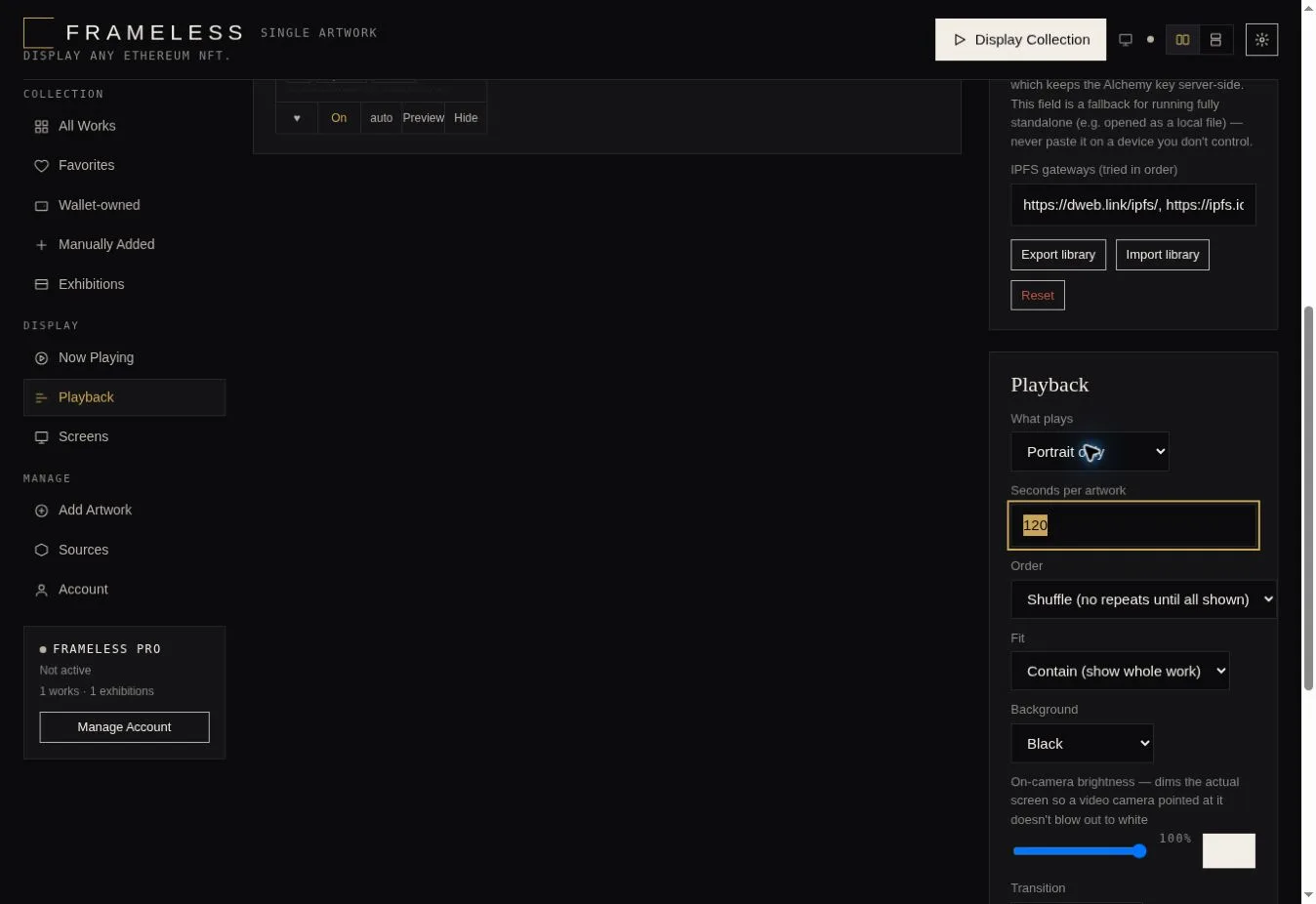
Choose how long each artwork remains on screen — Frameless Pro defaults to 120 seconds per artwork. Display duration changes the feel of the gallery: longer viewing periods give complex or detailed artwork time to be appreciated, while shorter rotations create a more energetic pace.
Start the Slideshow
Launch the gallery by clicking Display Collection and to enter full screen, and let Frameless automatically rotate through the collection. The transition between works defaults to a smooth crossfade.
Displaying Static, Animated, and Live NFTs
Displaying Static Artwork
Static works display exactly as intended — images, photography, generative outputs, and digital paintings and illustrations are shown full screen with their original aspect ratio preserved.
Displaying Animated Artwork
Animated NFT media, looping artwork, and motion-based digital pieces play directly in the player. Mute is available for any video-based works.
Using Live or Interactive NFT Display Modes
Many NFTs offer a live version — a real-time, often generative or interactive presentation that differs from the static preview image shown on a marketplace. Frameless supports live HTML and generative art, sandboxed for safety.
Each work offers three playback modes:
- auto — follows the global "Live artwork" setting
- live — always shows the original, animated, or interactive version
- static — always shows a still image
Frameless favors the live version when an NFT provides an appropriate live presentation. This is why what you see on screen may look different from the marketplace thumbnail.
How to Use Frameless Gallery With a Digital Display
Open Frameless on Your Computer or Pi
- Open the Frameless URL using your display's built-in browser.
- Load the desired NFT URL, ENS name, hex address, or gallery.
- Enter full-screen display mode with Preview on each NFT or via the Display Collection button.
Using Frameless With TokenFrame
Frameless can be loaded directly on compatible TokenFrame displays via a built-in Google Chrome browser with no software needed to install. A vertical TokenFrame is ideal for portrait artwork, while a landscape TokenFrame suits landscape pieces well.
Using Frameless on a TV or Monitor
Frameless runs on:
- A smart TV with a built-in browser
- A connected computer
- A mini PC or Raspberry Pi attached to any screen
- A tablet or other browser-capable device
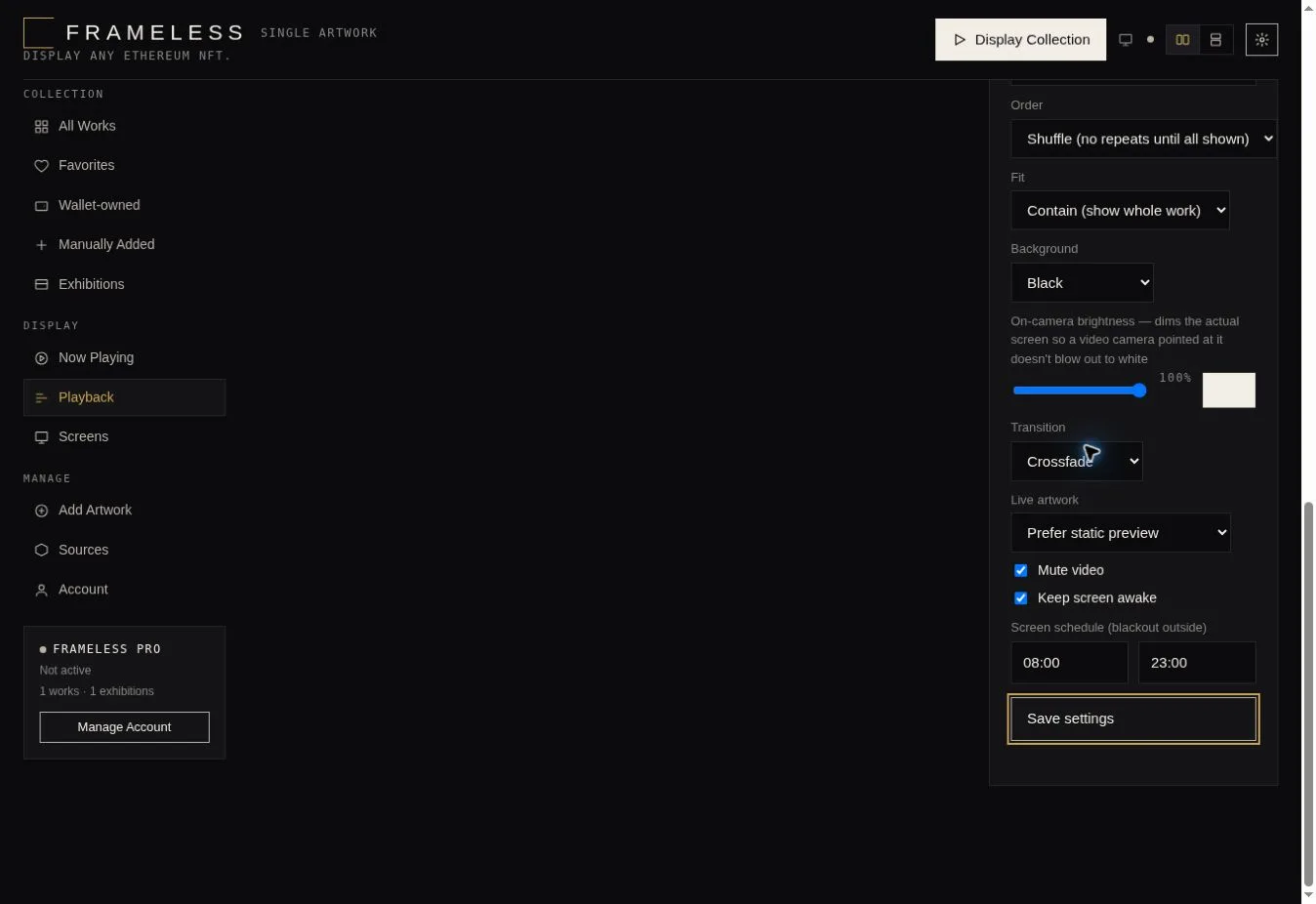
The Fit setting (default "Contain") ensures artwork is never distorted, and the Background setting lets you choose a color that complements each piece.
Understanding the Frameless Gallery Player Controls
For each work, Frameless displays the artwork title, artist, collection, token information, description, and available metadata.
Display Controls
- Play / Pause — start or pause the rotation
- Previous / Next — step through works manually
- Full screen — enter distraction-free display mode
- Rotation and slideshow controls — manage the playlist
- Live and Auto controls — switch between live and static per work
Display Settings
- Artwork fit — Contain, Cover, and other fit options
- Orientation — portrait or landscape handling
- Timing — seconds per artwork
- Interface visibility — auto-hide the UI when inactive
- Cursor behavior — the cursor disappears when idle
- Transition — crossfade and other transitions
- Keep screen awake — prevents the display from sleeping
- On-camera brightness — adjusts for ambient light
- Screen schedule — set active hours (e.g., 08:00–23:00)
How Frameless Retrieves Your NFT Artwork
Ethereum and NFT Ownership
Frameless reads publicly available blockchain information. Because Ethereum wallet balances and NFT ownership are public on-chain data, Frameless can retrieve them using only a public address — no sign-in, no connection, no permission granted.
NFT Media and Metadata
Frameless retrieves artwork and metadata using an Alchemy-first discovery flow, with OpenSea URL parsing and metadata fallback. Different NFTs store and deliver their media differently — some as static images, some as video, and some as live HTML or generative code. Frameless ranks media sources and proxies them for reliability, with an offline cache so your gallery keeps running even if the network hiccups.
Optional Alchemy API Key
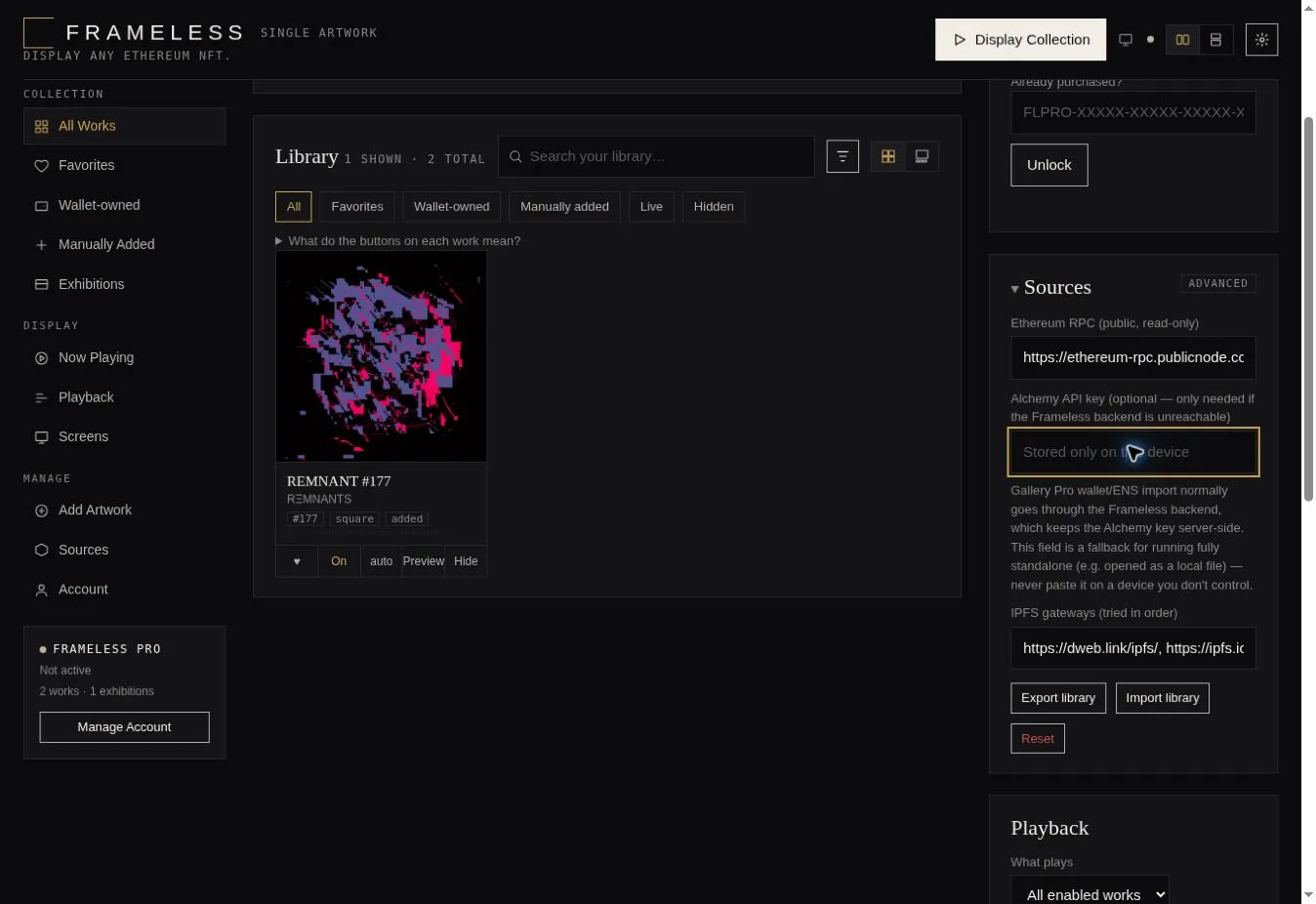
Most users do not need to provide their own API key. The optional Alchemy API key is useful as a fallback if the Frameless backend is unreachable, or for power users who want to manage their own rate limits. You can enter it under Sources in the right sidebar.
Troubleshooting Frameless Gallery
My NFT Isn't Loading
- Verify the NFT URL is correct
- Check your network connection
- Refresh the artwork
- Try loading the NFT again
- Check whether the underlying NFT media is still available at its source
My Wallet Collection Isn't Loading
- Verify the Ethereum address is correct
- Verify the ENS name resolves
- Refresh the collection
- Check network connectivity
The Live Version of My NFT Isn't Displaying
- Check whether the NFT provides a live version
- Try switching the work to live instead of static
- Refresh the artwork
- Note that externally hosted NFT media can have availability limitations outside Frameless's control
Frameless Can't Reach the Backend
- Retry the connection
- Check internet connectivity
- Use the optional Alchemy API key fallback under Sources
My Artwork Doesn't Fit the Screen Correctly
- Check the display Fit setting (use "Contain" to preserve aspect ratio)
- Preserve the original aspect ratio
- Verify the display's resolution and orientation
Frequently Asked Questions About Frameless Gallery
Is Frameless Gallery free?
Yes. You can display a single Ethereum NFT for free. Frameless Pro is a one-time $9.99 lifetime purchase for galleries, wallet imports, and advanced controls.
What blockchains does Frameless Gallery support?
Frameless is Ethereum-native, supporting major Ethereum NFT formats including static, animated, video, live HTML, and generative art.
Do I need to connect my crypto wallet?
No. Frameless uses public wallet data only — there is no wallet connection, sign-in, or permission required.
Does Frameless ever need my private key or seed phrase?
Never. Frameless only needs a public Ethereum address or ENS name. Never enter a seed phrase or private key.
Can I use an ENS name?
Yes, with Frameless Pro. Enter an ENS name like name.eth and Frameless resolves it to the associated Ethereum address.
Can Frameless display animated NFTs?
Yes, including looping and motion-based digital pieces.
Can Frameless display live or interactive NFTs?
Yes. Frameless supports live HTML and generative art in a sandboxed player, with per-work live/static control.
Can I display NFTs on a TokenFrame?
Yes. Frameless works with TokenFrame and compatible Android displays, plus any browser-capable screen.
Can I use Frameless on a regular TV or monitor?
Yes — through a smart TV browser, a connected computer, a mini PC, or a Raspberry Pi.
Can I create a slideshow of my NFTs?
Yes. With Frameless Pro you can build a rotating gallery and set how long each artwork stays on screen.
Can I display NFTs from multiple artists or collections?
Yes. You can mix artists and collections freely within a single gallery.
Does Frameless work with vertical displays?
Yes. Frameless measures every work on import and supports orientation-aware, automatic portrait and landscape playlists.
Do I need my own Alchemy API key?
Most users do not. The optional key is available as a fallback under Sources if the Frameless backend is unreachable.
Does Frameless change or modify my NFTs?
No. Frameless retrieves the original asset and displays it as-is, preserving the artist's intended presentation and aspect ratio.
Turn Your NFT Collection Into a Digital Gallery
NFTs were created to be experienced — not left sitting inside a wallet. Frameless Gallery gives collectors a way to bring their digital art collections into their physical spaces, on a screen worthy of the work.
Start by displaying a single Ethereum NFT, and when you are ready to create galleries, rotations, and a more curated display experience, Frameless Pro unlocks the full experience for a one-time, lifetime price.